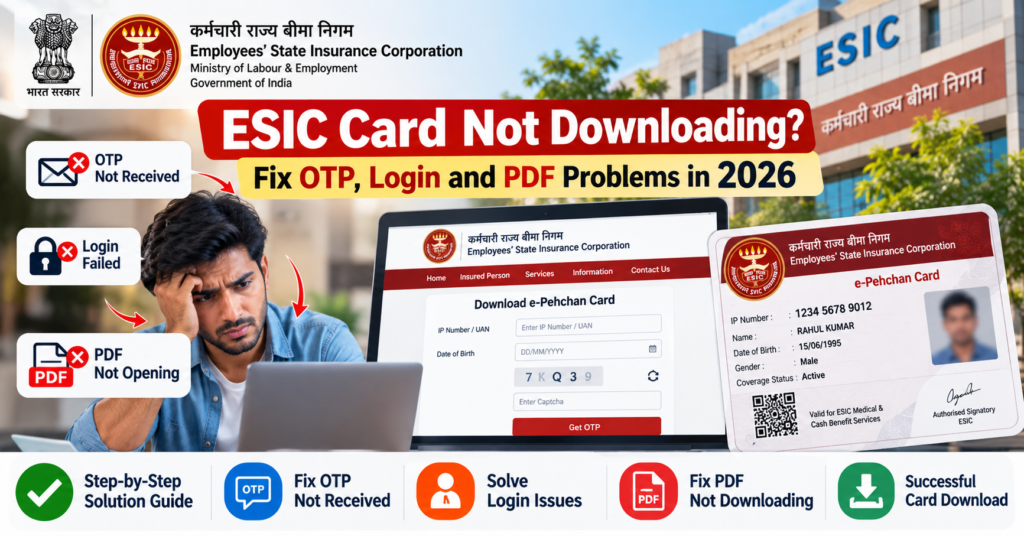
If your ESIC card is not downloading, first identify exactly where the process is failing. An OTP that does not arrive, an incorrect-password error, a download button that does nothing, and a PDF that downloads but will not open all require different fixes.
Start by checking whether you can successfully access your insured-person record. If login works, verify whether the e-Pehchan Card opens in the browser or has already been saved to your device. If the PDF downloads successfully but shows incorrect personal or family details, the problem is with the underlying ESIC record rather than the download itself.
A failed card download does not automatically mean your ESIC registration is inactive or your benefits have stopped. In many cases, the issue is limited to login credentials, OTP verification, browser settings, the download process, or the PDF file itself.
On this page9 sections · jump to what you need
ESIC Card Not Downloading? Find the Exact Download Problem First
If your ESIC card is not downloading, do not keep repeating the same download attempt. First identify whether the problem is with ESIC login, OTP verification, the download button, browser settings, or the e-Pehchan Card PDF itself.
| ESIC Card Download Problem | What to Check First | Best Next Step |
|---|---|---|
| ESIC portal will not load | Internet connection and official ESIC entry point | Reopen the service from the ESIC homepage or try another supported official route |
| Username or password rejected | Correct Insured Person login and IP Number | Recheck credentials or use password recovery |
| ESIC OTP not received | Registered mobile access and resend timer | Wait for the permitted retry or resolve the mobile-number issue |
| ESIC card download button not working | Browser downloads, blocked pop-ups and new tabs | Check whether the PDF opened or saved elsewhere |
| e-Pehchan Card PDF blank or not opening | File size and PDF reader | Download a fresh copy if the file is incomplete |
| e-Pehchan Card option missing | Correct ESIC service and insured-person record | Recheck the account route or seek authorised assistance |
| ESIC card shows wrong details | Whether the same error appears in the account | Use the relevant particulars-correction process |
| Updated details missing from PDF | Correction approval status and saved file version | Generate a fresh e-Pehchan Card after approval |
Browser troubleshooting can fix a device-side ESIC card download problem, but it will not correct an error in the ESIC portal or in your insured-person record.
ESIC Login Problem or OTP Not Received Before Card Download
You must complete the required ESIC authentication before the e-Pehchan Card can be downloaded. If the problem occurs at login or OTP verification, repeatedly pressing Download will not help.
ESIC Username or Password Not Accepted
If the ESIC Insured Person login is not working, first make sure you are using the Insured Person/Beneficiary Portal, not the Employer Portal or ESI Staff login.
Check your ESIC IP Number against an existing registration document. Remove accidental spaces and make sure browser autofill has not inserted:
- an email address
- company employee ID
- another saved username
- credentials from a different website
If the IP Number is correct but you cannot remember the password, use Forgot Password. If you have an Insurance Number but never created portal access, use Sign Up instead of guessing passwords.
For the full process, see the ESIC Insured Person Login guide.
ESIC OTP Not Received
If your ESIC OTP is not arriving, first determine whether this is a temporary delivery delay or a problem with the mobile number linked to your account.
Check the registered mobile number.
Make sure the relevant SIM is active and can receive SMS. If the service shows a masked mobile number, confirm that it is still yours.
Wait for the resend timer.
Do not keep requesting OTPs repeatedly. Use the resend option only when the service allows it.
Use the latest OTP.
If you request another code, avoid entering an older OTP from a previous attempt.
Resolve an outdated mobile number separately.
If you no longer control the linked number, contact your employer or the appropriate ESIC office. Changing browsers will not fix an outdated ESIC mobile record.
For ESIC Health Connect, the January 2026 instructions state that the resend option becomes available after three minutes. They also document a three-hour waiting period after three consecutive OTP generations. These limits are specific to Health Connect and should not automatically be applied to every ESIC or UMANG service.
ESIC Login Works but Session Expires Before Card Download
If your ESIC login succeeds but the card does not download because the session expires, sign in again and go directly to the e-Pehchan Card section.
Close duplicate ESIC tabs and avoid leaving the account idle before opening the card.
If the problem continues, try another updated browser. Do not keep resetting the password when authentication itself is already working.
ESIC Card Download Button Not Working
If you can access your ESIC account but the e-Pehchan Card download button is not working, check whether the browser actually opened or saved the file somewhere else.
Check Whether the ESIC Card PDF Already Downloaded
Step 1: Open your browser’s download history.
Look for a PDF created at the same time as your ESIC card download attempt.
Step 2: Check the Downloads folder.
On a phone, open the Files or file-manager app. On a computer, check the folder where your browser normally saves downloads.
Step 3: Check other browser tabs.
The ESIC e-Pehchan Card PDF may have opened in a new tab instead of downloading automatically.
Step 4: Verify the file.
Open it and confirm that it is your actual e-Pehchan Card, not an error page that was saved as a PDF.
If the ESIC portal shows no visible download confirmation, that does not always mean the file was not saved.
ESIC Card Download Blocked by Pop-Up Settings
Some ESIC card-download actions may open the PDF in another tab or browser window.
If the browser shows a pop-up blocked message, allow pop-ups only for the official ESIC service and try again.
Do not disable browser protection for every website.
If you opened ESIC inside an in-app browser from WhatsApp, Gmail, or another app, open the official service directly in Chrome, Safari, Edge, or another normal browser.
ESIC PDF Not Saving to Phone or Computer
If the ESIC card PDF is not saving, check whether:
- your device has enough storage
- the browser is waiting for download confirmation
- the browser is asking where to save the file
- the PDF opened as a preview instead
- the browser blocked the download
If one updated browser fails, try another before changing broader device settings.
Do not install an unofficial “ESIC card downloader” or reset your phone just to obtain the PDF.
ESIC Card PDF Opens but There Is No Download or Save Button
Sometimes the e-Pehchan Card opens in the browser but is not actually saved.
Look for the PDF viewer’s:
- Download
- Save
- Share
option.
If your device offers Save as PDF through the print menu, check the final file carefully. Saving the webpage itself is not the same as downloading the actual ESIC e-Pehchan Card PDF.
ESIC Card PDF Blank, Damaged or Not Opening? Try These Fixes
If your ESIC card PDF is blank, damaged, or not opening, the problem is usually with the downloaded file, the PDF viewer, or an incomplete download rather than the ESIC registration itself.
Try Another PDF Viewer
Open the saved e-Pehchan Card PDF in another trusted PDF reader or browser.
If the file opens correctly there, the problem is likely with the original viewer. You do not need to change your ESIC account details or create another insurance registration.
If the PDF asks for a password, follow only the instructions provided by the official service. Do not assume that Aadhaar digits, date of birth, or another personal detail is the password unless ESIC specifically states this.
Check Whether the ESIC PDF Download Is Incomplete
Check the downloaded file size.
A zero-byte PDF contains no document data. An unusually small file or a PDF that displays an error page may mean the actual e-Pehchan Card was not downloaded correctly.
In that case:
- Sign in to the official ESIC service again.
- Return to the e-Pehchan Card section.
- Retry the download on a stable connection.
- Save the new PDF separately from the failed copy.
Keeping both files separate helps prevent repeatedly opening the same damaged ESIC card PDF.
Do Not Upload Your e-Pehchan Card to Unknown PDF Repair Websites
An ESIC e-Pehchan Card can contain personal and family information.
Avoid uploading it to unknown PDF repair or conversion websites. First try opening the file locally with another trusted reader or download a fresh copy through an authorised ESIC route.
e-Pehchan Card Option Missing or ESIC Card Not Found
If the e-Pehchan Card option is missing, this is different from a PDF that has already downloaded but will not open.
Check the Correct ESIC Service
Start from the official ESIC website and open the relevant insured-person service.
For ESIC Health Connect, the January 2026 manual documents the route:
IP Details → Select Employer Code → Download E-Pehchan Card
If the app asks you to select an employer code, choose the relevant employment record before attempting the card download.
Do not expect the browser portal and Health Connect app to use identical menu names.
Check Whether Your ESIC Registration or Enrolment Is Available
If you recently joined a company and the e-Pehchan Card is not showing, ask HR or payroll to confirm your:
- IP Number
- ESIC registration
- employment linkage or enrolment record
A clear request would be:
I can log in to my ESIC account, but the e-Pehchan Card option is not visible. Please confirm whether my current employment record and IP Number are correctly linked.
A missing card option does not automatically prove that registration is incomplete, but the underlying record should be checked.
Do Not Create a New ESIC Number to Fix a Missing Card
If you already have an ESIC Insurance Number / IP Number, ask for that existing record to be checked.
Creating a new number is not a valid shortcut for fixing a missing e-Pehchan Card. Your existing Insurance Number is intended to continue across employment changes.
ESIC Card Downloaded but Name or Family Details Are Wrong
If the ESIC card downloads successfully but shows incorrect details, the issue is likely with the underlying insured-person record rather than the PDF download.
Compare the card with the details visible in your ESIC account. If the same error appears there, downloading the PDF again will not correct it.
Name, Date of Birth or Personal Details Are Incorrect
If your name, date of birth, or other personal information is wrong on the ESIC card, note the exact discrepancy and use the appropriate particulars-update process or seek employer assistance.
Keep the supporting documents requested for the correction ready.
ESIC’s particulars-update process includes verification and approval, so submitting a correction request does not mean the change has already been completed.
Family Member Missing From ESIC Card
If a dependant or family member is missing from the e-Pehchan Card, first check whether that person is missing from the ESIC record itself or only from the PDF you downloaded.
Adding a dependant, correcting a relationship, and updating a photograph are separate record changes. Explain the exact issue to HR or the appropriate ESIC office so the correct update process can be followed.
Downloading the same ESIC card again will not automatically add a missing family member.
ESIC Correction Approved but Old Details Still Showing
If you already submitted a correction but the old details still appear on the ESIC card, first check the request status.
If the request is still pending, follow up with the employer or ESIC office handling it.
If the corrected information has been approved and is visible in your account, download a fresh e-Pehchan Card PDF and make sure you are opening the newly generated file.
An older PDF saved on your phone or computer will continue to show the previous details.
Alternative Ways to Download Your ESIC Card
If the ESIC card download is failing on one platform, another official route may work, especially when the problem is limited to a browser session, app, or login method.
| Official Route | When It May Help | Important Limitation |
|---|---|---|
| ESIC Insured Person Portal | Browser-based employee access and e-Pehchan services | Requires the applicable insured-person login |
| ESIC Health Connect | Mobile access to supported ESIC services | Uses IP Number and OTP-based authentication |
| UMANG ESIC Services | Alternative access to supported ESIC facilities | UMANG login does not automatically complete ESIC verification |
| Employer / HR Assistance | Checking registration, employment linkage, or card-related records | Employer-side access must be handled by authorised personnel |
UMANG supports ESIC services including e-Pehchan Card access. Open the official UMANG portal, search for ESIC, and follow the authentication steps shown for the required service.
These routes are alternatives, not guaranteed fixes. If the underlying ESIC record is incorrect or incomplete, the same problem may appear on more than one platform.
When to Contact HR or an ESIC Office for Card Download Problems
Contact HR or payroll when the ESIC card problem appears to involve your registration, employment linkage, registered mobile number, or an employer-handled correction.
If the issue still cannot be resolved, use the official ESIC branch-office directory to locate the appropriate ESIC office.
Before contacting support, note:
- which ESIC service you used
- where the card-download process stopped
- the exact error message
- the date and approximate time
- whether login was successful
- whether another browser or official route showed the same issue
A clear request would be:
I can log in successfully, but the e-Pehchan Card download fails after I select the card option. The error shown is “[exact error].” Please advise whether the issue requires a record check or technical assistance.
Remove unnecessary personal details from screenshots before sharing them. Never send your ESIC password or OTP to HR, an agent, or anyone claiming to provide technical support.
If you need medical treatment, do not delay care simply because your ESIC card PDF is not downloading. Contact the relevant healthcare facility and ask what identification or verification they require for your visit.
Frequently Asked Questions
Why is my ESIC card not downloading even after successful login?
Check whether the e-Pehchan Card PDF has already been saved, opened in another browser tab, or blocked by the browser. If login is successful, repeatedly resetting the password is unlikely to fix a problem occurring at the download stage.
Does a blank ESIC card PDF mean my registration is inactive?
No. A blank or unreadable PDF does not by itself prove that your ESIC registration is inactive. Try another PDF reader and download a fresh copy before investigating the underlying record.
Can I download the ESIC card without an OTP?
It depends on the official route being used. ESIC Health Connect uses OTP verification, while other supported services may use different authentication methods. Do not assume that switching platforms removes all verification requirements.
Can HR help if the ESIC card download is not working?
Yes. HR or payroll can help confirm your IP Number, employment linkage, and ESIC registration details and advise whether employer-side action is required. Explain the exact card-download problem rather than asking for a new registration.
Why does my ESIC card still show old details after a correction?
The correction may still be pending, or you may be opening an older saved PDF. Check whether the updated details are visible in your ESIC record and then generate a fresh e-Pehchan Card.
Should I create a new ESIC account or Insurance Number if the card will not download?
No. A download error is not a reason to request another ESIC Insurance Number. The existing insured-person record should be checked and the access or download problem resolved.
Where can I find the regular ESIC card download steps?
Use the ESIC Card Download guide for the normal download process. Use this troubleshooting guide when the standard process fails at a specific step.