If your registered ESIC mobile number is wrong, inactive, or no longer belongs to you, the first step is to find out whether you can still access your insured-person account.
If you can log in, check the mobile number and other details currently recorded in your ESIC profile. If you are locked out because OTPs are going to an old number, contact your employer’s HR or payroll team and ask them to help update the existing ESIC insurance record.
One important point is that changing your phone number in a company HR portal does not necessarily update the number stored by ESIC.
The same applies to other apps and accounts. Updating your number in UMANG should not be treated as proof that your ESIC registration has also been changed.
For a successful ESIC mobile number update, the goal is simple:
update the correct ESIC record → complete the required verification → confirm that the new number is actually saved
This guide explains how to check the number linked to your ESIC record, when HR or payroll involvement may be needed, what to do if you cannot receive OTPs, and how to verify that the update has been completed correctly.
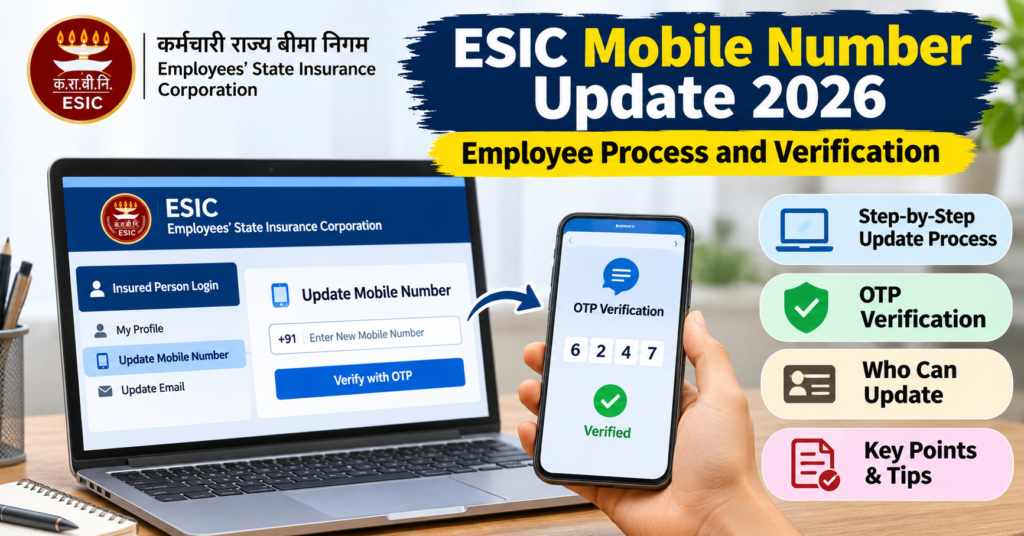
On this page13 sections · jump to what you need
Which Mobile Number Needs Updating in ESIC?
Before requesting an ESIC mobile number update, first identify which record actually contains the old or incorrect number.
Your phone number may appear in several systems, but those systems do not necessarily update each other automatically.
| Where the Number Appears | What You Need to Check |
|---|---|
| ESIC insured-person record | Whether the mobile number linked to your IP Number is incorrect or outdated |
| Company HR or payroll profile | Whether HR changed only its internal record or also processed the ESIC update |
| UMANG account | Whether the problem is with UMANG login or with the ESIC record itself |
| Aadhaar authentication | Whether the verification step is using the mobile number linked with Aadhaar |
| Previous employer record | Whether your existing ESIC Insurance Number still needs correction through the current authorised route |
The important point is:
Changing the number in one place does not prove that it has changed everywhere.
For example, updating your phone number in your company’s employee portal may change only the employer’s internal contact details.
If your ESIC number also needs correction, ask HR or payroll specifically whether they have updated the mobile number linked to your ESIC Insurance Number / IP Number.
ESIC Number vs UMANG Number vs Aadhaar Number
These should not automatically be treated as the same record.
ESIC registered mobile number
Used in connection with your insured-person record and ESIC services.
UMANG mobile number
Used for your UMANG account and app access.
Aadhaar-linked mobile number
Used where Aadhaar OTP or authentication is required.
Updating one of these does not necessarily update the others.
So if an OTP is failing, first identify which system is trying to verify you before requesting a mobile-number correction.
When Should You Check or Change the Registered Mobile Number?
An ESIC mobile number update is worth checking when:
- you permanently changed your phone number
- the old SIM is lost or disconnected
- the recorded number belongs to someone else
- the number contains a typing error
- you cannot complete a required verification because the registered number is inaccessible
- your employer changed your contact number internally but the ESIC record still shows the old one
However, a single delayed OTP does not automatically mean the ESIC number is wrong.
Before requesting a correction, check whether:
- the OTP is delayed
- the mobile network is working
- the service is showing a masked destination number
- you are using the correct login or verification route
This helps avoid unnecessary record-change requests when the problem is only temporary.
What to Keep Ready for an ESIC Mobile Number Update
Before contacting HR, payroll or ESIC, keep the information needed to identify the correct insured-person record.
| Item | Why It Helps |
|---|---|
| ESIC Insurance Number / IP Number | Identifies your existing ESIC record |
| Company employee ID | Helps HR or payroll locate your employment details |
| New active mobile number | The number you want linked to the ESIC record |
| Access to the new phone | May be needed for OTP or another verification step |
| Old mobile number, if known | Helps explain which number needs replacement |
| Relevant identity proof | May be requested for verification through the authorised process |
| Employer details | Useful if HR needs to locate the correct ESIC registration |
The IP Number is especially important.
If you already have an ESIC Insurance Number, the goal is normally to correct the existing record—not create another ESIC registration simply because your phone number has changed.
Do You Need Aadhaar for an ESIC Mobile Number Change?
Do not assume that every mobile-number update follows one identical document or Aadhaar-verification process.
The required verification can depend on:
- the ESIC service being used
- whether you can still access your account
- whether the change is being processed through your employer
- whether Aadhaar authentication is involved
- whether ESIC needs additional identity confirmation
Use the documents requested by the authorised process handling your particular correction.
Share Documents Only Through an Authorised Route
A mobile-number correction involves access to your insurance record, so avoid sending:
- Aadhaar copies
- ESIC card details
- employee information
- OTPs
to unofficial agents, WhatsApp numbers or unrelated websites.
Use your employer’s established HR/payroll process or an official ESIC channel.
Keep your original documents with you and provide copies only when they are genuinely required for verification.
Can Employees Update Their ESIC Mobile Number Online?
If you can still sign in to your insured-person account, first check the mobile number currently shown in your profile.
A masked number may be enough to confirm whether the last digits match your current mobile.
Open the official ESIC website and access the insured-person service. For login help, use the ESIC Insured Person Login Guide.
In the employee-side particulars-update workflow, mobile-number editing has been placed under:
Update Particulars → Address Details
Because the available controls can change over time, use the options actually shown in your current ESIC account.
How to Check and Submit the Mobile Number Change
Step 1: Verify the existing record.
Make sure you are viewing your own ESIC Insurance Number and insured-person details.
Step 2: Open Update Particulars.
Go to the particulars-update section and check Address Details for the mobile-number field.
Step 3: Enter the new mobile number if editing is available.
Check every digit before proceeding.
Step 4: Complete the requirements shown on the form.
This may include declarations, verification steps or supporting information depending on the workflow displayed.
Step 5: Submit the request.
Do not close the page until you see a submission result or acknowledgement.
Step 6: Save the acknowledgement or reference number.
Keep a screenshot or copy so you can track the request if needed.
Submitted Does Not Always Mean Updated
A successful submission should not automatically be treated as proof that the new number has already replaced the old one.
The broader particulars-update process can involve:
employee submission → employer verification → ESIC / branch processing → final approval
So, after submitting the request, check:
- request status
- employer-verification status
- branch-office remarks, if shown
- whether the new number is finally visible in the record
If the request is rejected or returned, read the remarks before submitting another correction.
What If the Mobile Number Field Is Missing or Locked?
Do not use an unrelated update category simply to submit a request.
If:
- the mobile field is not visible
- editing is disabled
- you cannot log in
- OTP is going to an inaccessible old number
- the portal does not allow you to complete the change
use the employer-assisted route instead.
How to Update an ESIC Mobile Number Through Your Employer
Employer assistance is particularly useful when the employee cannot access the insured-person account.
Contact the HR, payroll or authorised employee who handles ESI matters in your organisation.
Ask them specifically to update the mobile number linked to your existing ESIC Insurance Number / IP Number.
Do not ask for the company’s employer-portal password and do not attempt to log in using employer credentials yourself.
The employer-side ESIC facility is identified as:
Update Mobile Number of Insured Person
Employer-Side Mobile Number Update Process
The documented workflow is broadly:
Step 1: Locate the correct insured-person record.
HR should search using the correct employee and ESIC Insurance Number.
Step 2: Enter the replacement mobile number.
Check the number carefully before validation.
Step 3: Select “Validate Mobile Number.”
The system checks the entered number and may display a validation message or alert.
Step 4: Complete the verification shown.
Depending on the case, the workflow may involve OTP verification and an employer declaration.
Step 5: Complete the final update.
Validation alone is not necessarily the same as saving the new number.
HR should continue until the system confirms that the update has been completed.
Why OTP May Not Look the Same in Every Case
Do not assume that every ESIC mobile-number update follows one identical OTP process.
The employer-side mobile-update workflow has documented different validation cases, so the exact verification route can vary.
The safest approach is to follow the current screen rather than relying on an old screenshot or tutorial.
What Should You Ask HR to Do?
Be specific.
Instead of saying:
“Please change my phone number.”
say that the correction is required in your ESIC insured-person record.
A clear request is:
Please help update the mobile number registered against my existing ESIC Insurance Number. My old number is no longer accessible. Please confirm the verification required and let me know once the new number is saved in the ESIC record.
Share your actual ESIC and employee details only through your employer’s normal HR or payroll channel.
How to Confirm That the ESIC Mobile Number Was Actually Updated
Do not stop at “HR submitted it.”
After the process is completed, verify the result where possible.
Check whether:
- the new mobile number appears in the insured-person profile
- OTP is now received on the new number
- the update request shows completed or approved
- HR confirms that the ESIC record, not only the company profile, was changed
This final check matters because:
HR record updated ≠ ESIC record updated
and:
mobile validated ≠ update necessarily completed
The process is complete only when the new number is actually saved against the correct ESIC insured-person record.
How to Change the ESIC Mobile Number Without the Old SIM
If your old SIM is lost, disconnected, reassigned or simply no longer accessible, mention that at the start of the mobile-number update request.
Do not assume that the old SIM is always required.
At the same time, do not assume that it is never required.
The verification method depends on the ESIC route being used and the controls shown for your record.
A practical approach is:
Step 1: Check whether you can still access your insured-person account.
If your existing login still works, open the profile or particulars-update area and inspect the mobile-number options available to you.
Step 2: Use the employee-side update route if it is available.
Enter the new active number, complete the verification shown on the screen and save the acknowledgement or request reference.
Step 3: Contact HR or payroll if you cannot complete the update yourself.
Ask the authorised ESI handler to update the mobile number against your existing ESIC Insurance Number / IP Number.
Make it clear that the old number is inaccessible.
Step 4: Contact ESIC if the verification problem remains unresolved.
Explain exactly what happened to the old number:
- SIM lost
- SIM permanently disconnected
- number reassigned
- wrong number entered during registration
- old number belongs to someone else
- number changed after leaving the employer
That information helps the office understand why ordinary OTP verification may not work.
Do Not Try to Recover OTPs From the New Owner of an Old Number
If your old mobile number has been reassigned to another person, do not contact them asking for ESIC OTPs.
OTPs are part of account verification and should not be shared between people.
Use the authorised ESIC or employer-side correction process instead.
What If You Have Left the Employer?
Leaving the employer does not mean you should create a new ESIC Insurance Number just because the old mobile number is inaccessible.
The mobile-number problem should first be investigated against your existing insured-person record.
If another current employer is now handling your ESI registration, ask its HR or payroll team whether it can assist with the correction to the existing record.
If no employer can help, use the ESIC Branch Office Directory to identify the appropriate ESIC office.
Before travelling, ask:
- whether that office handles insured-person detail corrections
- whether an appointment is required
- what identity evidence should be carried
- whether the update can be initiated remotely
- whether any employer confirmation is still required
Keep your existing IP Number ready when contacting the office.
A mobile-number issue by itself is not a reason to obtain a second ESIC Insurance Number.
How to Confirm the New ESIC Mobile Number Is Registered
Submitting an update is only the first part.
The second part is verifying that the new number has actually been saved against the correct ESIC record.
After the process is complete, check as many of the following as possible:
- the request shows approved, completed or updated
- the mobile number displayed in the account has changed
- the masked last digits match your new number
- HR confirms that the change was made in the ESIC record, not only the company HR system
- OTPs from the relevant ESIC service now arrive on the new phone
- no further employer or branch-office action is pending
This distinction is important:
mobile number validated ≠ update necessarily completed
and:
request submitted ≠ new number necessarily saved
If HR says the request has been “processed,” ask whether that means:
- entered
- validated
- submitted
- awaiting approval
- finally updated
That one clarification can prevent a lot of confusion.
Does Updating the ESIC Number Fix Every OTP Problem?
No.
Different services may use different contact or authentication records.
If you still cannot receive an OTP after the ESIC mobile-number change, first identify which service is sending the code.
| OTP Problem Appears In | What to Check |
|---|---|
| ESIC insured-person portal | Whether the ESIC record contains the new number |
| ESIC Health Connect | Whether the app is using the updated insured-person details and whether a fresh login is needed |
| UMANG | Whether the issue concerns your UMANG account rather than ESIC registration |
| Aadhaar authentication | Whether the OTP is being sent to the mobile number linked with Aadhaar |
Do not keep changing the ESIC record if the failed OTP is actually coming from another system.
Do You Need to Wait 24 or 48 Hours After the Update?
Do not assume there is a universal 24-hour or 48-hour synchronisation period for every ESIC mobile-number change.
If the responsible office or the live service gives a specific waiting period, follow that instruction.
Otherwise, rely on the actual update status and verify the record rather than repeatedly waiting for an arbitrary number of hours.
If the new number is shown as updated but one particular service still uses the old number, identify that service separately and ask whether it has its own update or authentication process.
Common ESIC Mobile Number Update Problems
The New Mobile Number Is Already Linked to Another ESIC Record
First, check every digit of the number entered. If it is correct and you recently received a reassigned number or share the number with a family member, explain that to the employer representative handling the update. They can check the alert and follow the applicable ESIC verification process.
Use a number you can reliably access for future verification. Entering a colleague’s number to get past the alert could leave you dependent on them the next time you need a code.
The OTP Does Not Arrive During Verification
Check which number the service is trying to verify. If it displays only the last few digits, compare them with the number you expect. If HR initiated the update, ask them to confirm the destination before requesting another code.
If the destination is correct, check whether the SIM can receive SMS and wait for the displayed resend timer. If you have requested several codes, use the one for the current attempt. If the code is going to an old number you no longer control, ask HR or ESIC how to complete verification in your case.
HR Updated Your Contact Details, but ESIC Still Shows the Old Number
Ask HR whether they changed the number in the company’s employee profile or against your IP Number in ESIC. If they processed the ESIC update, ask for the confirmation or request reference and check whether any action is still pending.
The New Number Was Validated, but the Change Has Not Appeared
Validation and saving are separate steps. Check whether the final update or submission was completed. If the portal generated a request reference, check its status before submitting again.
If the change is marked complete but your insured-person profile still shows the old number, report the discrepancy to HR or ESIC. Include the reference, date of the update, and the service where the old number still appears.
How to Verify Your Updated ESIC Mobile Number
Once the change is confirmed, sign in to your insured-person account and check whether the visible last digits match your new number. Then retry the official service you needed. If that service sends an OTP, check that it reaches the expected phone.
If the ESIC profile shows the new number but a particular verification still fails, identify whether the code is for ESIC, UMANG account access, or Aadhaar authentication. That will help you check the right record without repeating the ESIC update.
If your next step is to save your e-Pehchan PDF, follow the ESIC Card Download guide.
FAQs About ESIC Mobile Number Update
Can I change my ESIC registered mobile number online?
If you can sign in, check Update Particulars → Address Details for an editable mobile field. If it is unavailable or you cannot sign in, ask your authorised employer representative to help.
Can HR change my ESIC mobile number for me?
Yes. The authorised representative who handles ESI can use the employer-side mobile update facility for your existing insured-person record and complete the applicable verification.
Can I change my ESIC mobile number without the old SIM?
Ask HR to check the employer-side update route and explain that you cannot receive messages on the old number. The verification required depends on the route used. If your employer cannot help, contact the appropriate ESIC branch office.
Does updating my UMANG or Aadhaar mobile number also update ESIC?
Check each record separately. Changing your UMANG login number or Aadhaar-linked number does not confirm that the mobile number recorded against your ESIC IP Number has changed.
How long does an ESIC mobile number update take?
There is no fixed completion time that applies to every route. If you have a request reference, check whether the change is pending or complete, then confirm the number in your insured-person profile.
Do I need a new IP Number after changing my mobile number?
No. Update the contact details against your existing IP Number. Losing access to the old SIM or missing an OTP is not a reason to create another ESIC registration.