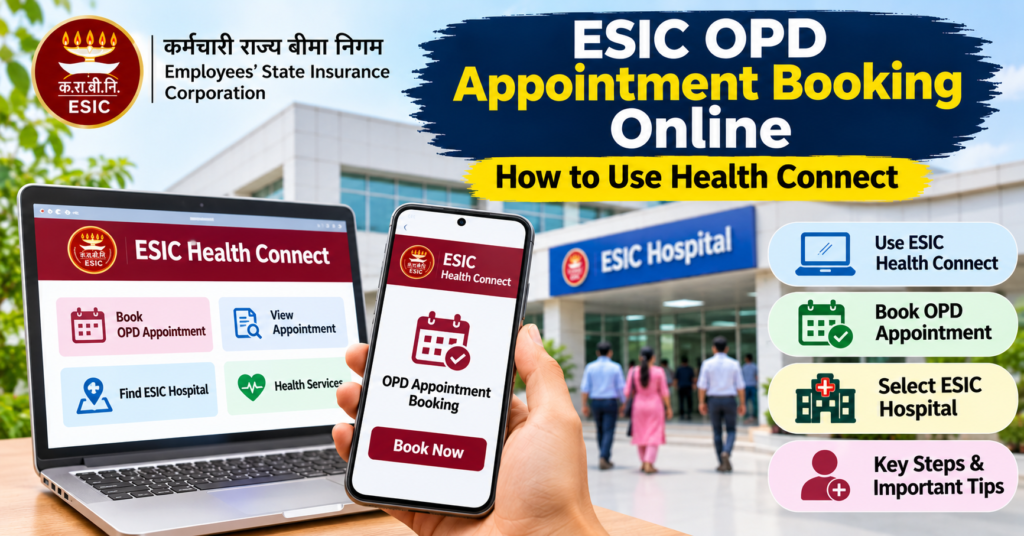
You can book an ESIC OPD appointment online through the ESIC Health Connect app instead of relying only on walk-in registration.
For a routine dispensary visit, open:
Appointments → Book Appointment
Then select yourself or an eligible family member, choose the available ESI dispensary, specialty, date and appointment slot, and complete the booking.
If the patient has already been referred from a dispensary to an ESI hospital, use the hospital appointment route shown in Health Connect and follow the referral details rather than starting an unrelated dispensary booking.
One important point is easy to miss:
booking the appointment and checking in for OPD are two separate steps.
After a successful booking, save the booking reference number.
On the appointment day, Health Connect can allow you to generate a separate OPD Check-In / Registration Number. If you successfully generate that number in the app, follow the instructions shown for proceeding to consultation. If you cannot generate it, take your booking reference to the dispensary or hospital registration counter and complete the check-in there.
This guide explains how to book an ESIC OPD appointment in Health Connect, select the correct patient and facility, use a referral for hospital booking, generate the check-in number, and handle common appointment problems before visiting the ESI facility.
On this page16 sections · jump to what you need
Which ESIC Appointment Should You Book?
Before choosing a slot, first identify which ESI facility the patient is supposed to visit.
Health Connect can be used for both routine dispensary appointments and referred hospital appointments, but the booking path is not the same in every case.
| Your Situation | Which Booking Route to Use |
|---|---|
| Routine consultation at your assigned ESI dispensary | Choose the dispensary appointment for the person who needs treatment |
| Referred by the dispensary doctor to an ESI hospital | Choose the hospital appointment route and enter the referral details |
| Booking for a spouse, child or another registered family member | Select the correct person under Choose Patient before selecting the facility or slot |
| You want to visit a hospital but have no referral | Start with the assigned dispensary unless the current ESIC process specifically allows direct hospital booking |
The key distinction is:
Routine care → dispensary appointment
Referred specialist/hospital care → hospital appointment using referral details
Do not choose a hospital simply because it has an available slot if the patient has not been referred there.
If you are still unsure whether the patient should start at a dispensary, ESIC hospital or another authorised facility, see the ESIC Card Hospital Treatment Guide first.
Once the treatment route is clear, you can book the correct appointment in Health Connect.
Download ESIC Health Connect and Sign In
Use the official ESIC Health Connect app for insured-person appointment services.
You can install it from:
If you come across older ESIC instructions referring to AAA+, Health Connect is the newer app interface used for services such as appointment booking, rescheduling and cancellation.
Before signing in, keep these details ready:
- ESIC Insurance Number / IP Number
- access to the registered mobile number
- patient details for the person who needs treatment
If you are booking for a family member, sign in through the insured person’s account and select the correct dependent when the app asks you to Choose Patient.
Do not create a separate appointment under the insured person’s name if the spouse, child or other registered family member is the one who will actually attend.
If you need help locating your Insurance Number or accessing the employee record, use the ESIC Insured Person Login Guide.
Before You Start Booking
It is worth checking three things first:
1. Correct patient
Make sure the person who needs treatment appears in the family record.
2. Correct facility
Know whether you need the assigned dispensary or a referred ESI hospital.
3. Correct mobile access
Keep the registered mobile number available if the app requires OTP or another verification step.
Getting these three details right prevents most booking mistakes before you even reach the slot-selection screen.
How to Book an ESIC Dispensary Appointment
For a routine consultation, use the dispensary booking route in ESIC Health Connect.
Step 1: Open a new appointment booking.
Tap Appointments in the bottom menu and choose Book Appointment.
If you already tried to book once, first check:
Appointments → Upcoming
This helps you avoid creating a duplicate appointment if the earlier booking actually succeeded.
Step 2: Choose the correct patient.
On the Choose Patient screen, select:
- Self for your own consultation, or
- the correct registered dependent for a spouse, child, parent or other eligible family member
Check the patient name carefully before continuing.
If the consultation is for a family member but you book under your own name, the appointment will be created for the wrong patient.
Step 3: Review the assigned dispensary.
Check the facility name shown in the booking flow.
Then choose:
- appointment date
- session
- available time slot
Tap Proceed after selecting the slot.
If the dispensary appears but no times are available, try:
- another session
- another date
- another currently available slot
A full schedule does not necessarily mean there is a problem with your ESIC account.
Step 4: Review the booking before confirming.
On the Review Booking screen, verify:
- patient name
- dispensary
- date
- appointment time
- contact number, if shown
Then tap Book Appointment.
This final action matters.
Selecting a slot and reaching the review screen does not mean the appointment has been booked.
Step 5: Save the booking reference.
After confirmation, save the reference number and check that the appointment appears under:
Appointments → Upcoming
That gives you a second way to confirm that the booking was completed successfully.
How to Book an ESIC Hospital OPD Appointment After a Referral
Hospital booking is different from routine dispensary booking because it is linked to the referral issued for the patient.
Keep the referral available before opening Health Connect.
The hospital and specialty should match the referral rather than whichever appointment looks most convenient.
Step 1: Select the patient named on the referral.
Open:
Appointments → Book Appointment
Then choose the person for whom the referral was issued.
If the referral belongs to a dependent, select that dependent rather than the insured person.
Step 2: Choose the hospital appointment route.
Select the option for a referred hospital appointment.
The booking flow may ask for details such as:
- referral advice type
- hospital
- referral mode
- whether the referral is recorded as online or offline
Enter the information according to the referral you actually received.
If you have a paper referral but are unsure whether it has been recorded as online or offline, confirm with the referring dispensary rather than guessing.
Step 3: Select the referred specialty.
Choose the department or specialty that matches the referral.
Then select:
- date
- session
- available appointment time
Do not switch to an unrelated specialty simply because it has an earlier slot.
Step 4: Review the hospital booking carefully.
Before submitting, check:
- patient name
- hospital
- specialty
- date
- time
- referral details
This is especially important because a booking at the correct hospital but under the wrong specialty may not match the treatment you were referred for.
Step 5: Confirm and save the booking reference.
Submit the appointment and make sure it appears under:
Appointments → Upcoming
Keep both:
- the hospital appointment reference
- the referral document
available for the visit.
Registration staff may need to verify both.
Dispensary Appointment vs Hospital Referral Appointment
The difference is simple:
| Booking Type | When to Use It |
|---|---|
| Dispensary appointment | Routine consultation at your assigned ESI dispensary |
| Hospital appointment | When an ESI doctor has referred the patient to an ESI hospital or specialty |
For routine care, start with the dispensary.
For referred treatment, follow the hospital and specialty written in the referral.
Do not treat the hospital booking option as a shortcut for directly choosing any ESI hospital.
ESIC Booking Reference vs OPD Check-In Number
A confirmed appointment can still require a separate OPD check-in number on the day of the visit.
These two numbers are used at different stages.
| Number | When You Get It | What It Does |
|---|---|---|
| Booking Reference | After the appointment is successfully booked | Confirms the reservation and helps staff locate your appointment |
| OPD Check-In Number | On the appointment day, through Health Connect or the registration counter | Records that the patient has checked in for that day’s consultation |
The easiest way to understand it is:
Booking reference = appointment reserved
Check-in number = patient arrived for consultation
So if your appointment already appears under Upcoming but the app later asks you to generate a check-in number, that is normal.
How to Generate Your ESIC OPD Check-In Number
Step 1: Open the appointment on the visit date.
If Health Connect sends a self check-in notification, open it.
If you miss the notification, go to:
Appointments → Upcoming
and open the correct appointment.
Step 2: Tap “Generate Check-In No.”
Use the check-in option when it becomes available and confirm that the patient is attending.
Save or note the number once it is generated.
Then follow any facility-specific instruction displayed in the app.
Step 3: Use the OPD registration counter if self check-in fails.
If:
- Generate Check-In No. does not appear
- the app shows an error
- the check-in number is not generated
- you cannot access the app on arrival
take your booking reference to the OPD registration counter.
The counter can handle the check-in process for the booked appointment according to the facility’s procedure.
How Early Should You Reach?
If counter check-in may be needed, avoid reaching exactly at the appointment time.
A practical target is to arrive at least 15 minutes early, unless your own booking confirmation gives a different reporting instruction.
Extra time is useful for:
- security entry
- locating the OPD
- counter check-in
- identity verification
- finding the correct department
What to Carry for an ESIC OPD Appointment
Before leaving home, keep these together:
- booking reference
- latest e-Pehchan Card
- government-issued photo ID, where required
- previous prescriptions or reports
- referral document for a referred hospital appointment
- any authorisation or appointment instruction shown in Health Connect
If you need another copy of the card, use the ESIC Card Download Guide.
For a referred hospital visit, carry both the appointment booking and referral details. One does not necessarily replace the other.
What to Do If ESIC Health Connect Will Not Let You Book
Where the process fails often tells you what kind of problem you have.
| What You See | What It Usually Points To | What to Do Next |
|---|---|---|
| Dependent missing under Choose Patient | Family record may be incomplete or incorrect | Check the ESIC family record and correct the dependent details through the authorised employer/ESIC process |
| Referred hospital does not appear | Patient, referral mode, hospital or referral details may not match | Recheck the referral and confirm the booking route with the referring dispensary |
| Facility appears but no slots are available | Schedule is full or no slot has been released for that date/session | Try another date or session and ask the facility whether counter OPD registration is available |
| You tapped Book Appointment but saw no confirmation | The booking may or may not have completed | Check Appointments → Upcoming before trying again |
| Appointment is confirmed but check-in number will not generate | Day-of-visit self check-in has failed or is unavailable | Take the booking reference to the OPD registration counter |
| Wrong patient was selected | Appointment may be under the wrong person | Cancel or correct the booking rather than attending under another patient’s name |
| App does not show the expected facility | Assigned facility or referral route may differ from what you expected | Confirm the correct dispensary or hospital before repeatedly retrying |
The important point is to avoid treating every Health Connect problem as an “app error.”
Different failures usually point to different causes.
If Your Dependent Does Not Appear
A spouse, child, parent or other eligible family member must normally appear correctly in the ESIC family record before you can select them as the patient.
If the person is missing:
- check whether they were ever added
- check whether an update is still pending
- ask HR or ESIC whether employer verification is incomplete
- confirm the spelling and relationship details
Do not book the appointment under Self just because the dependent is unavailable.
That creates an appointment for the wrong patient.
If the Hospital Does Not Appear After Referral
For a referred hospital appointment, first confirm:
- correct patient selected
- hospital named in the referral
- specialty
- referral type
- online/offline referral status, where requested
If those details are correct and the hospital still does not appear, contact the referring dispensary or hospital registration desk.
Do not choose another hospital or specialty simply to obtain an available slot.
If There Are No Appointment Slots
A visible facility with no available time usually means you should first try:
- another session
- another date
- the next available day
If no slots appear, contact the facility and ask:
- whether new slots are released later
- whether walk-in or counter OPD registration is available
- what time you should report if no app booking is possible
This is different from a missing facility or missing patient problem.
If You Are Not Sure Whether the Appointment Was Booked
Do not immediately submit the same appointment again.
First open:
Appointments → Upcoming
Look for:
- patient name
- facility
- date
- time
If the appointment is already there, the booking succeeded.
If it is not there and no confirmation was generated, then retry or contact the facility if the status remains unclear.
This simple check helps avoid duplicate bookings.
If You Cannot Generate the Check-In Number
If the appointment is confirmed but self check-in is not working:
do not cancel the appointment just because the check-in button fails.
Take the booking reference to the OPD registration counter.
The booking and the check-in are separate stages, so a failed self check-in does not automatically mean the appointment itself has been lost.
The Fastest Way to Diagnose a Health Connect Booking Problem
Use this simple rule:
Patient missing → check family record
Dispensary or hospital missing → check facility/referral route
No slots → check another date/session
No booking confirmation → check Upcoming
Booking confirmed but no check-in number → go to OPD registration counter
That makes it much easier to solve the right problem instead of repeatedly reinstalling the app or trying unrelated booking options.
How to Reschedule or Cancel an ESIC OPD Appointment
If your plans change, open:
Appointments → Upcoming
Then select the appointment you want to manage.
If the app provides Reschedule or Cancel, use the relevant option.
To Reschedule an Appointment
Step 1: Open the existing appointment.
Step 2: Select Reschedule.
Step 3: Choose a new available date, session or time slot.
Step 4: Complete the confirmation.
Step 5: Reopen the appointment and verify that the new date and time are showing correctly.
Do not assume that simply selecting another slot completes the change.
Before travelling, check the updated appointment under Upcoming and save the latest booking reference or confirmation shown by the app.
To Cancel an Appointment
Open the booking and select Cancel if that option is available.
After confirming the cancellation, check that the appointment status has actually changed.
If you manage appointments for several family members, verify:
- patient name
- facility
- appointment date
- booking reference
before cancelling or rescheduling.
This prevents accidentally changing the wrong family member’s appointment.
Frequently Asked Questions About ESIC OPD Appointment Booking
Can I book an ESIC hospital OPD appointment without a referral?
The hospital appointment route in Health Connect is generally intended for patients who have been referred from the appropriate ESI dispensary or treating facility.
For routine care without a referral, start with the dispensary appointment route unless your facility gives different instructions.
Can I book an ESIC appointment for a family member from my account?
Yes, if the family member appears as an eligible registered dependent.
On the Choose Patient screen, select the person who actually needs treatment.
Before confirming, check that the correct patient name appears on the review screen.
For a referred hospital visit, the referral should also belong to that same patient.
Can I generate the ESIC OPD check-in number one day early?
Normally, the self check-in process is used on the day of the appointment.
If you open the booking the night before and only see the booking reference, that does not mean anything is wrong.
Open the appointment again on the visit date and look for the Generate Check-In No. option.
Do I need to book again if I did not receive a confirmation SMS?
Not immediately.
First open:
Appointments → Upcoming
If the appointment appears there with the correct:
- patient
- facility
- date
- time
- booking reference
the booking has already been created.
Do not make a duplicate appointment simply because an SMS did not arrive.
What if I accidentally booked for the wrong family member?
Do not attend using the wrong patient’s appointment.
Open the booking and cancel or correct it where possible, then book again under the correct person.
The appointment should match the patient who will actually receive treatment.
What if no slots are available after I reschedule?
Try another date or session.
If suitable slots are still unavailable, contact the dispensary or hospital to ask about the current OPD registration process rather than cancelling a valid appointment without another plan.
Can I cancel an ESIC appointment and book again later?
Yes, where the app allows cancellation and another slot is available.
However, check the new availability before cancelling an appointment you may still need, particularly when specialist or referred hospital slots are limited.
Is the booking reference the same as the OPD check-in number?
No.
The booking reference confirms the appointment reservation.
The OPD check-in number is generated on the visit day to record your arrival for consultation.
What should I do if the check-in number does not generate?
Take your booking reference to the OPD registration counter.
A self check-in failure does not automatically mean the appointment itself has been cancelled.
Before You Leave for Your ESIC OPD Appointment
Do one final check in Health Connect before travelling:
correct patient → correct facility → correct date and time → booking reference saved → referral ready, if applicable
On the appointment day, also check whether the app allows you to generate the OPD check-in number.
If it does not, reach the facility with enough time to complete check-in at the registration counter.
This simple check prevents the most common appointment-day problems: arriving for the wrong patient, using an old appointment time, forgetting the referral, or assuming that the booking reference itself completes OPD check-in.