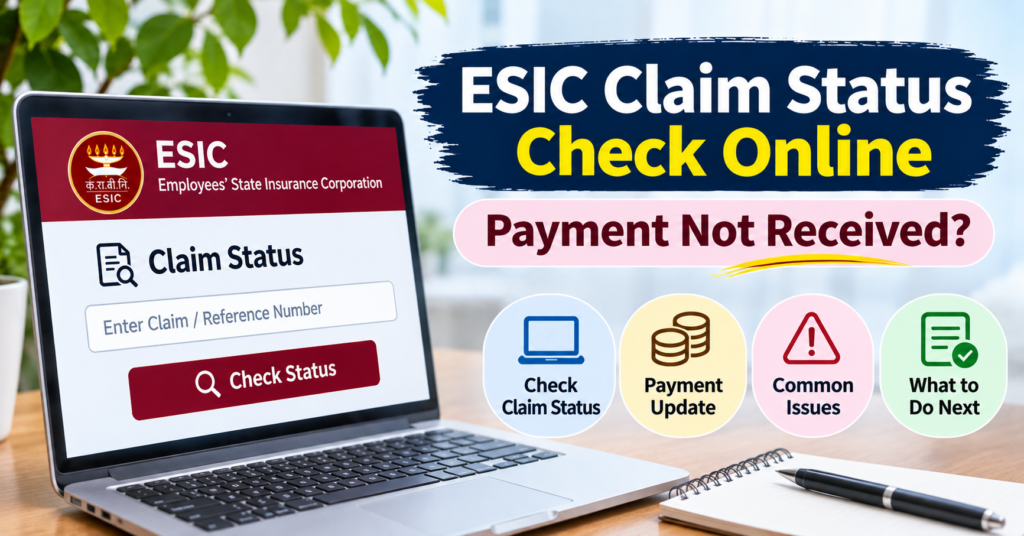
If you have submitted an ESIC claim and want to know whether it is pending, approved, rejected or already sent for payment, you can check the status through the ESIC Insured Person Portal or the ESIC Health Connect app.
In Health Connect, open Claim Status, select the relevant date range and search for the claim.
If you are checking a request that has a Claim Intimation ID, use Claim Intimation Request Status instead. These are different tracking routes, so choose the one that matches the acknowledgement or reference you received.
The next step depends on what the status shows.
If the claim is still pending, you need to find out which stage is holding it up.
If the claim is approved but the amount has not reached your bank account, contact the ESIC branch office handling the claim and ask whether payment has actually been released.
If the office confirms that the payment was sent, ask for details such as:
- payment date
- amount
- transaction or transfer reference, if available
Then compare those details with your bank statement or ask the bank to trace the transaction.
This guide explains how to check ESIC claim status online, understand the different claim-tracking options, identify where a claim is stuck, and follow up when an approved ESIC payment has not reached your bank account.
On this page15 sections · jump to what you need
ESIC Claim Status vs Claim Intimation Status: What Is the Difference?
ESIC Claim Status and Claim Intimation Request Status are not the same thing.
A Claim Intimation ID helps you track the request you submitted, while Claim Status is used to check what ESIC shows for the benefit claim itself.
Use the option that matches what you are actually trying to confirm.
How to Check ESIC Claim Intimation Request Status
If you submitted an online claim intimation and received a Claim Intimation ID, open Claim Intimation Request Status in ESIC Health Connect.
Check and note:
- Claim Intimation ID
- submission date
- benefit type
- current status
- any remarks displayed
This screen is useful when your main question is:
“Did my ESIC claim intimation reach the branch office?”
If the request appears here, you have a specific record that ESIC can trace.
What Does “Pending with Branch Office” Mean in ESIC Claim Status?
If your Claim Intimation Request Status shows Pending with Branch Office, the request is still awaiting action or processing at the ESIC branch-office level.
It does not automatically mean:
- the benefit claim has been approved
- the claim has been rejected
- payment has been sanctioned
- money has been transferred to your bank
So do not treat Pending with Branch Office as a payment status.
Keep the Claim Intimation ID and use it when following up with the branch office.
How to Check ESIC Claim Status Online
If you want to know what ESIC currently shows for the actual benefit claim, check Claim Status in:
- ESIC Health Connect, or
- the ESIC Insured Person Portal
Look for:
- claim reference
- benefit type
- relevant claim period or dates
- exact status shown
- remarks, if available
This is the more useful screen when your question is:
“Is my ESIC claim pending, approved, rejected or processed?”
ESIC Claim Not Showing After Submission: What Should You Do?
If you received a Claim Intimation ID but cannot find the benefit claim in Claim Status, do not immediately assume the claim was rejected.
First check:
- whether you selected the correct date range
- whether the benefit type is correct
- whether the request is still pending at the branch office
- whether the claim has progressed beyond the intimation stage
Keep the Claim Intimation ID because it gives the ESIC office a specific submission to search for.
An empty Claim Status result by itself does not explain what happened to the request.
ESIC Claim Approved but Payment Not Received
If the claim appears approved but the money has not reached your bank account, check your bank statement first.
If there is no matching credit, contact the ESIC branch office handling the claim and ask:
- Has the payment been released?
- On what date was it sent?
- What amount was released?
- Is a payment or transaction reference available?
If ESIC confirms that the payment was sent, compare those details with your bank statement.
If the credit is still missing, give the transfer details to your bank and ask whether the transaction can be traced.
Best Way to Track an ESIC Claim From Submission to Payment
Use the following sequence:
Claim Intimation ID → Claim Intimation Request Status → ESIC Claim Status → branch-office payment confirmation → bank statement
This helps you identify whether the problem is with:
- submission
- branch-office processing
- claim approval
- payment release
- bank credit
That is much more useful than checking one status screen repeatedly without knowing which stage of the claim it represents.
How to Check ESIC Claim Status in the Employee Portal
Use the ESIC Insured Person Portal when you want to check your claim status in a browser.
Before signing in, keep these details ready:
- ESIC Insurance Number / IP Number
- claim acknowledgement or reference number, if available
- approximate submission date
- benefit type
- branch office details, if you submitted documents offline
Step 1: Open the ESIC Insured Person Login
Go to the official ESIC website and choose the service for insured persons or beneficiaries.
Make sure you are using the employee-side login.
If the page asks for employer credentials, return to the ESIC homepage and choose the insured-person route instead.
For help locating the correct login, use the ESIC Insured Person Login Guide.
Step 2: Open the ESIC Claim Status Service
After signing in, look for the option used to check claim status.
If the portal asks for a date range, choose a period that includes the date the claim or intimation was submitted.
Do not assume the first day of sickness, maternity leave or another benefit period is the same as the claim-submission date.
Using too narrow a date range can make a valid claim harder to find.
Step 3: Match the Claim Status to the Correct Claim
If more than one claim appears, compare:
- benefit type
- claim reference
- submission or claim dates
- branch office, where shown
- current status
- remarks
Do not rely only on the first result or a short status preview.
Save the exact wording shown by ESIC, especially if you may need to contact the branch office later.
What If You Submitted More Than One ESIC Claim?
Match each result with the acknowledgement you received at the time of submission.
This is particularly important if you submitted more than one:
- sickness claim
- maternity claim
- disablement-related claim
- other supported cash-benefit request
The status of one claim should not be assumed to apply to another.
ESIC Claim Not Showing in the Employee Portal
If the claim does not appear, first check:
- whether the date range is wide enough
- whether you selected the correct benefit type
- whether you are checking the right insured-person record
- whether the claim is still only at the intimation stage
- whether the submission was handled offline
If you have a Claim Intimation ID or acknowledgement, keep it.
That reference gives ESIC a specific record to trace even when the claim does not yet appear in the normal Claim Status search.
What If Someone Else Submitted the ESIC Claim for You?
If HR, payroll, a family member or another authorised person submitted paperwork on your behalf, ask them for:
- acknowledgement
- claim or intimation reference
- submission date
- benefit type
- ESIC branch office where it was submitted
These details are much more useful than simply being told that “the claim was submitted.”
If the online search still returns nothing, provide those details to the branch office when following up.
How to Check ESIC Claim Status in Health Connect
The ESIC Health Connect app provides separate options for checking a benefit claim and tracking a submitted Claim Intimation ID.
Both are useful, but they answer different questions.
How to Search ESIC Claim Status by Date
Step 1: Sign in to ESIC Health Connect.
Open the official app from:
Use the insured-person account connected with the claim.
Step 2: Open Claim Status.
Go to the app’s status services and choose Claim Status.
Select:
- From Date
- To Date
then tap Search.
If the first search returns no result, check the date shown on your acknowledgement and try a wider range where the app allows it.
The date of sickness, leave or treatment and the date the claim was actually submitted may not be the same.
Step 3: Match the result to your claim.
If one or more entries appear, check:
- claim reference
- benefit type
- claim dates
- current status
- remarks, where shown
If you need to contact ESIC, note the exact wording of the status instead of describing it only as “pending.”
That helps the branch office determine whether the issue concerns processing, missing documents, approval or payment.
How to Check ESIC Claim Intimation Request Status
If your acknowledgement contains a Claim Intimation ID, open:
Claim Intimation Request Status
rather than relying only on the normal Claim Status search.
Look for the matching:
- Claim Intimation ID
- benefit type
- submission date
- current status
- remarks
If several requests appear, use View All where available and match the exact ID.
What Does “Pending with Branch Office” Mean in ESIC?
If the Claim Intimation Request Status shows:
Pending with Branch Office
the request is still at the branch-office processing stage.
This status does not by itself prove that:
- the benefit has been approved
- the claim has been rejected
- payment has been sanctioned
- money has been transferred
Read the Remarks field as well.
If a remark asks for a document or clarification, contact the branch office and ask how to provide it and what reference should be mentioned.
If there is no specific instruction, ask whether the office needs anything further from you.
Do not submit a second intimation immediately just because the first one is still pending. Confirm what happened to the existing request first.
ESIC Claim Pending with Branch Office: What Should You Do?
Start with the Claim Intimation ID and submission date.
When contacting the branch office, ask:
- Has the claim intimation been received?
- Is any document still missing?
- Has the benefit claim been created or processed from the intimation?
- Is any action required from me?
- Are there remarks that I need to respond to?
If you submitted another document later, such as a medical certificate, ask whether it was matched to the original claim.
For example, if a sickness-benefit claim was submitted first and a certificate was handed in separately, the office should be able to check whether both are linked to the same request.
Keep acknowledgements for every additional document you submit.
ESIC Claim Not Showing in Health Connect
If Claim Status shows no result, do not immediately assume the claim is lost or rejected.
Check these first:
1. Confirm the Correct ESIC Account
Make sure you are signed in to the insured-person record connected with the claim.
2. Check the Search Date Range
Use a range that includes the actual submission date.
If necessary, widen the dates.
3. Check the Correct Status Screen
If your acknowledgement contains a Claim Intimation ID, also open:
Claim Intimation Request Status
A claim may still be visible at the intimation stage even when it does not yet appear in the normal claim search.
4. Check Offline Submission Records
If documents were submitted directly to an ESIC branch office, use the acknowledgement or receipt from that office when following up.
If the claim still cannot be found, ask the branch office to confirm whether the submission was:
- received
- entered into the system
- returned for correction
- not recorded
Give them:
- benefit type
- submission date
- IP Number
- Claim Intimation ID or reference
- acknowledgement details
If the office confirms that no record exists, ask how the claim should be submitted or corrected through the proper channel.
ESIC Claim Marked “Not Payable” or Returned
If your claim is shown as not payable, returned, rejected or requiring correction, read the reason before submitting anything again.
There is an important difference between:
Missing or incorrect information
which may be fixable by providing the required document or correction
and:
A decision that the benefit is not payable
which may require clarification on eligibility or the reason for the decision
Ask the handling branch office:
- what exact issue caused the status
- whether additional documents can resolve it
- whether the claim needs correction or fresh submission
- whether any review or further remedy applies
Do not create another identical claim until you understand what happened to the first one.
That prevents duplicate submissions and makes the follow-up easier to trace.
Fastest Way to Troubleshoot ESIC Claim Status in Health Connect
Use this sequence:
No result in Claim Status → check dates → check Claim Intimation Request Status → read remarks → contact branch office with the reference
If the claim appears but is still pending:
note exact status → check remarks → confirm missing documents or branch action
If it shows not payable or returned:
read reason → clarify whether it is correctable or a benefit decision
This approach helps you identify the actual problem before submitting another request.
ESIC Claim Approved but Payment Not Received: What to Check
If your ESIC claim shows as approved but the payment has not reached your bank account, first confirm whether the approval is for the claim itself or only for an earlier intimation/request stage.
An approved claim does not always mean the money has already been transferred.
The next question is:
Has ESIC actually released the payment?
Step 1: Ask ESIC Whether the Payment Has Been Released
Contact the ESIC branch office handling the claim and give them:
- claim reference
- benefit type
- insured-person details
- submission or approval date, if available
Ask clearly:
“Has the payment been released for this claim? If yes, what are the payment date, amount and transaction reference?”
If the office says the payment has not yet been released, ask:
- what stage the claim is currently at
- whether payment sanction is pending
- whether any document or correction is required from you
- whether there is any remark on the claim
At this stage, contacting the bank will not help because there may be no transfer to trace yet.
Step 2: Confirm Which Bank Account ESIC Used
If ESIC confirms that payment was released, ask which bank account was used.
This is especially important if:
- you changed bank accounts
- your salary account changed
- an older account is still linked to the claim record
- you updated bank details after submitting the claim
Ask the branch office to confirm the last few digits of the destination account, where permitted through its verification process.
Do not check only the account where your current salary is credited.
The ESIC payment may have been sent to a different account recorded against the claim.
Step 3: Check Your Bank Statement for the ESIC Credit
Once ESIC confirms the:
- transfer date
- amount
- destination account
check the relevant bank statement carefully.
Search around the transfer date rather than looking only at the claim approval date.
The approval date and payment-credit date may be different.
If the amount is still missing, ask ESIC for the transaction reference, payment reference or other transfer identifier, if available.
Then contact the bank and ask it to trace the payment using those details.
Step 4: Ask the Bank to Trace the Payment
If ESIC confirms that the transfer was successfully sent, provide the bank with:
- transfer date
- amount
- transaction reference, if available
- destination account details
Ask whether the payment:
- reached the account
- is pending
- failed
- was returned to the sender
This step is useful only after ESIC confirms that an actual transfer was initiated.
Step 5: What If the ESIC Payment Was Returned?
If the transfer was returned or failed, go back to the ESIC branch office.
Ask:
- why the payment was returned
- whether the bank details are incorrect
- what needs to be corrected
- whether a fresh bank proof or document is required
- how the payment will be reissued
If ESIC asks for updated bank details, submit them through the authorised channel and keep the acknowledgement.
When following up later, refer to the same claim reference and the correction acknowledgement so the office can trace the payment history.
ESIC Claim Approved but No Money Credited: Example
Suppose your maternity benefit claim shows as approved, but there is no matching credit in your bank account.
Do not immediately assume the bank lost the payment.
Use this sequence:
1. Ask ESIC whether payment was released.
2. If yes, confirm the transfer date, amount and destination account.
3. Check the correct bank statement.
4. If the credit is still missing, ask the bank to trace the transaction using the payment reference.
5. If the payment was returned, ask ESIC what needs to be corrected before reissue.
If ESIC says the payment has not yet been released, the next update must come from ESIC.
The bank cannot trace a transfer that was never sent.
Best Way to Follow Up on an Approved ESIC Claim
The most efficient sequence is:
Claim approved → confirm payment release → confirm destination account → check bank statement → trace transaction → correct returned payment if needed
This avoids the two most common mistakes:
- asking the bank to trace a payment before ESIC has released it
- repeatedly contacting ESIC when the transfer was already sent to the bank
Once you know which stage failed, you know which side—ESIC or the bank—needs to act next.
How to Raise an ESIC Grievance for a Pending or Unresolved Claim
If your ESIC claim remains unresolved, start with the branch office or ESIC office handling the claim.
Use the office shown on:
- claim acknowledgement
- claim correspondence
- intimation record
- earlier branch-office receipt
If you do not know which office is handling the case, contact the office where the paperwork was submitted or use the official ESIC website to identify the appropriate office.
When following up, provide enough information for the office to locate the claim quickly.
Keep these details ready:
- ESIC Insurance Number / IP Number
- benefit type
- claim or intimation reference
- submission date
- exact status shown online
- date of your last follow-up
- any remarks shown in Health Connect or the portal
Avoid sending only a general message such as:
“My ESIC payment is pending.”
A specific reference makes the case much easier to trace.
What to Ask the ESIC Branch Office
The question should match the stage of the claim.
If the status is still pending, ask:
- Has the claim been received?
- Is any document missing?
- Is any action required from me?
- Which stage is the claim currently at?
If the claim is approved but payment is missing, ask:
- Has payment been released?
- On what date?
- What amount was sent?
- Is a transaction or payment reference available?
- Was the payment returned by the bank?
If the claim was returned, ask:
- What needs to be corrected?
- Where should the correction be submitted?
- Will the same claim continue after correction, or is another submission required?
These questions are much more useful than asking only for a general “status update.”
How to Raise an ESIC Complaint Through CPGRAMS
If repeated follow-up with the handling ESIC office does not resolve the service issue, you can raise a grievance through the Government of India’s Centralised Public Grievance Redress and Monitoring System (CPGRAMS).
Use:
CPGRAMS Public Grievance Portal
A grievance can be useful when you need clarification or action on issues such as:
- claim not traceable
- claim pending without explanation
- missing document not being acknowledged
- approved payment not released
- payment released but returned
- repeated follow-up with no clear response
The grievance should explain what has already happened and what you want ESIC to clarify or correct.
For example:
I submitted my [benefit type] claim on [date]. My claim or intimation reference is [reference]. The current status shows [exact wording]. Please confirm whether anything is pending from my side. If payment has been released, please provide the transfer date, amount and transaction reference, if available.
Keep the grievance focused on the unresolved service issue.
A CPGRAMS complaint does not replace the original ESIC claim. It is a follow-up mechanism when the existing claim or payment issue has not been resolved.
Save the CPGRAMS Grievance Registration ID
After submitting the grievance, keep the registration ID.
You will need it to:
- track the complaint
- refer to earlier correspondence
- follow up if the response does not address the actual issue
Also keep copies of any documents or acknowledgements you attach.
What Not to Include in an ESIC Grievance Message
Do not put unnecessary sensitive information in the first message.
Avoid sharing:
- passwords
- OTPs
- complete debit-card details
- complete internet-banking credentials
- unrelated personal documents
Provide only the information required to identify the claim.
If ESIC or the bank later asks for a supporting document, submit it through an authorised channel.
Frequently Asked Questions About ESIC Claim Status and Payment
Can I check an ESIC claim without a claim number?
Yes, in some cases.
In ESIC Health Connect, the Claim Status screen allows you to search using a From Date and To Date after signing in.
If several results appear, match the claim using:
- benefit type
- dates
- insured-person record
- any available reference
For an offline follow-up, keep any acknowledgement, submission date or branch-office receipt you have.
Does “Pending with Branch Office” mean my ESIC claim was rejected?
No.
On Claim Intimation Request Status, it means the intimation is still pending with the branch office.
Read any remarks and ask whether the office needs:
- a document
- clarification
- another action from you
Do not treat this status as a rejection or payment confirmation.
How many days after ESIC claim approval will the money reach my bank?
Do not rely on approval date alone to estimate the bank-credit date.
First ask the branch office whether the payment has actually been released.
If it has, ask for:
- transfer date
- amount
- transaction reference, where available
Then check the relevant bank account.
What should I do if ESIC says payment was released but I did not receive it?
Ask ESIC which account was used and obtain the transaction details where available.
Then contact the bank and ask it to trace the transfer.
If the payment was returned, go back to ESIC and ask what needs to be corrected before reissue.
Can I use an employer’s ESIC challan number to track my benefit payment?
No.
An ESIC challan relates to employer contribution payments.
For sickness, maternity or another employee cash-benefit claim, use the insured-person account, claim reference or Claim Intimation ID.
Does an ESIC hospital visit automatically create a cash-benefit claim?
No.
Medical treatment and cash-benefit claims are separate.
An OPD appointment, hospital visit or prescription does not automatically create a sickness, maternity or another cash-benefit claim.
If someone submitted a claim on your behalf, ask for the:
- acknowledgement
- claim reference
- submission date
before trying to track it.
What if my ESIC claim is not showing anywhere online?
Check:
- the date range
- Claim Status
- Claim Intimation Request Status
- your acknowledgement
- the branch office where it was submitted
If the claim still cannot be found, ask the handling office to confirm whether it was received and entered into the system.
When should I raise a CPGRAMS grievance for an ESIC claim?
Use CPGRAMS after you have already tried to resolve the issue with the handling ESIC office and still do not have a clear answer or action.
It is most useful for an unresolved service issue, not as a substitute for submitting the original claim correctly.
1 Comment